

Session analytics
Tracking what happens in conversations
Once your agent handles real traffic, you cannot read every transcript. Labels let your agent mark conversations as they happen: a customer asked about pricing, a customer got frustrated, an upgrade was requested. Each label becomes a filter on your sessions, so you can count, find, and review the conversations that matter without a separate classification pipeline. This playbook shows how to decide what to track and how to read the results back.
- How a rule stamps a label onto a session when it matches
- How to choose a small set of labels worth tracking
- How to add or remove labels from your own code
- How to query labeled sessions and keep the label set useful
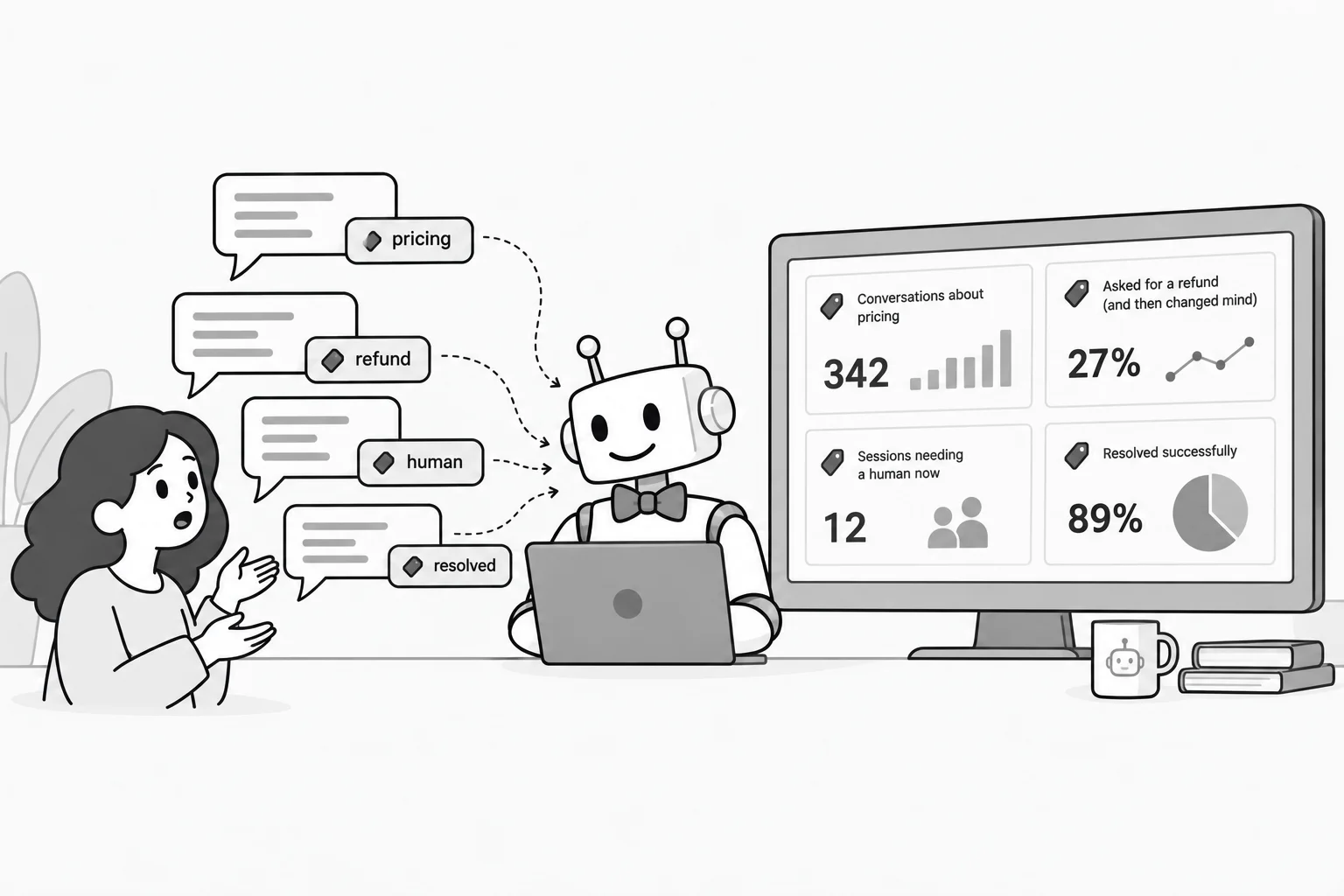
Which conversations are interesting? Measuring "interesting" is subjective. You might want to track situations you are not confident about yet, or get metrics for how often a customer expressed frustration, or delight, about the service.
You do not need a separate pipeline to classify conversations after the fact. Your Parlant agent can label sessions as it goes, feeding your analytics dashboard in real time.
You do that with a very simple building block: labels.
How labels record conversation events
Recall that a session is one conversation between an agent and a customer. Sessions carry labels, which are custom strings attached to the session for tracking. You can filter and explore sessions by label in the Dashboard, which makes it easy to see patterns and trends across conversations.
To label a session, we need a rule, like an observation or a policy. The simplest choice is an observation, since it lets us hook into a situation without changing the agent's behavior.
Every time the observation matches a turn in the conversation, the labels listed in it are stamped onto the session. This lets you track situations without processing the conversation logs afterward.
await agent.create_observation(
    condition="the customer asks about prices, plans, or discounts",
    labels=["pricing-interest"],  # stamped onto the session when matching
)

await agent.create_observation(
    condition="the customer is frustrated",
    labels=["frustration"],
)
Policies can also stamp labels onto the session when they apply.
await agent.create_policy(
    title="Start an upgrade",
    content=(
        "When the customer decides to upgrade, collect the plan "
        "they want and start the upgrade with `start_upgrade`.",
    ),
    tools=[start_upgrade],
    labels=["upgrade-requested"],
)
In this example, upgrade-requested records that the upgrade policy applied. It does not prove the tool ran or the upgrade succeeded. Use it to measure intent; record successful upgrades from the tool's result instead.
Deciding what to track
Labels are cheap to add, but they get noisy if over-used. Each one is a line in every report and a filter someone has to think about. So start from the questions you will actually act on, not from everything that could possibly be tagged. Three kinds of questions cover most deployments:
| Question | Label | Who reads it |
|---|---|---|
| Which sessions need a person now? | needs-human | The operator dashboard, as a live queue |
| How much interest is there in pricing, and does it convert? | pricing-interest, upgrade-completed | Sales and product, as session counts |
| Where does the agent struggle? | frustrated, repeat-question | Whoever tunes the policies |
As a best practice, name labels for the fact they record, in lowercase-with-hyphens.
Updating labels programmatically
You can also add or remove labels from your own code using p.Session.current.labels. This works inside tools, engine hooks, and handlers such as on_matched.
It is useful when a label depends on a result or a check your code needs to make.
For example, the upgrade policy above labels a request. To label a successful upgrade, wait until your billing service confirms it. Here, billing.upgrade stands for your own integration, which your coding agent connects.
@p.tool
async def start_upgrade(plan: str) -> p.ToolResult:
    result = await billing.upgrade(customer_id=p.Customer.current.id, plan=plan)

    if result.status != "completed":
        return p.ToolResult(data={"status": result.status, "message": result.message})

    await p.Session.current.labels.add("upgrade-completed")

    return p.ToolResult(data=f"The upgrade to {plan} is complete.")
Labels stay on the session until you remove them. If a label represents something that is no longer true, remove it with remove. For example, code that finishes a human handoff can clear the queue label:
await p.Session.current.labels.remove("needs-human")
The same methods work in a hook or an on_matched handler. For a label that should always be added when a rule matches, the rule's labels parameter is enough. Use a handler only when you need extra logic.
Query labeled sessions and interpret counts
Every label is a filter on the session list. In the Dashboard, filter sessions by label. Your coding agent reads the same data with the Dashboard CLI:
parlant dashboard analytics labels --range last-7-days
parlant dashboard session list --label needs-human --sort desc
parlant dashboard session view SESSION_ID
analytics labels counts each label over the range, session list finds the conversations behind a label, newest first, and session view reads one turn by turn. When you ask your coding agent to review conversations, tell it to use these commands rather than calling the Parlant API directly.
Your own backend lists labeled sessions through the API instead, for example for an operator queue. Human handoff shows that query.
Keep the set honest
Review the label set with the people who read the reports. A label nobody queried in a month is a candidate for removal, and a question nobody can answer from the current set is a candidate for a new observation.
Remember that labels feed the operator queue and the reports, not the agent. To change how the agent behaves in a situation, use policies.